
I have a handful of computers around the house, and for years I used NoMachine to hop between them. It did the job. Then NoMachine released version 10, and the free version was suddenly behind a subscription.
I didn’t feel like paying every month just to reach my own computers on my own network, so I went ahead and made my own version instead: FuMachine.
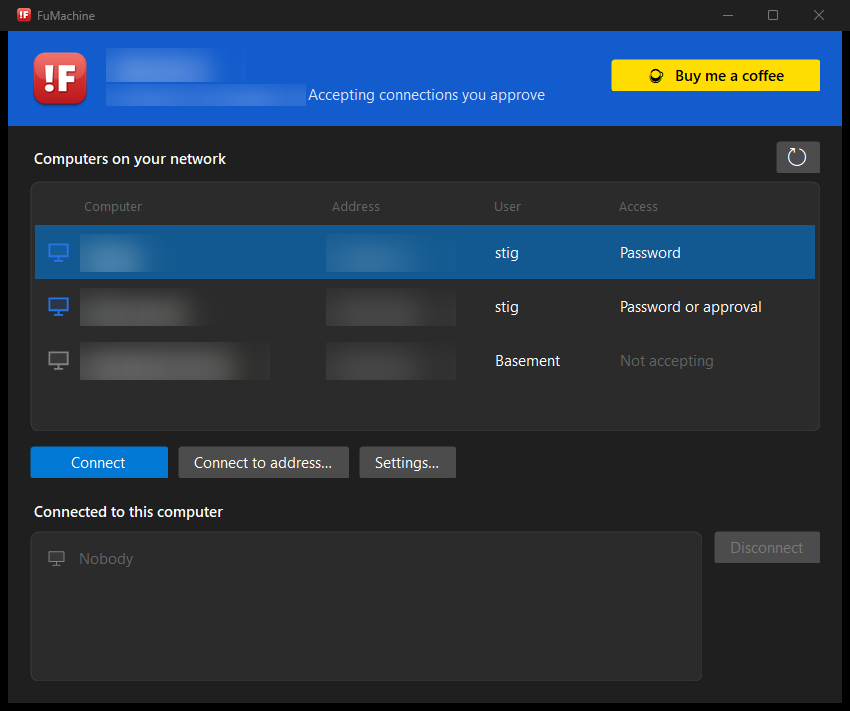
FuMachine is a small remote desktop for your local network, for Windows and Linux. Every copy you run is both a host (others can connect to it) and a viewer (it can connect to others). The computers find each other automatically, and you just double-click one to see its desktop and control it with your mouse and keyboard.
No cloud, no accounts, no relay servers, no internet needed. One exe, no installer, no dependencies.
Getting started
- Copy
FuMachine.exeto each computer and run it. - The first time, Windows Firewall asks whether FuMachine may use the network. Allow it on private networks.
- The other computers appear under Computers on your network. Double-click one to connect. You can also give them names of your own (F2).
- The first time you connect, the other computer shows Allow / Deny. Tick Always allow this computer and it won’t ask again.
Closing the window keeps FuMachine running in the tray, so the computer can still be reached.
For a computer with nobody sitting at it, set a password there. The viewer can choose Remember this computer, gets a personal token and isn’t asked again. Tick Start FuMachine when I sign in to Windows and it’s always there when you need it.
What the viewer can do
- Show one monitor or all of them at once
- Choose between speed, balanced or best quality
- Scale to the window, or 1:1 pixels with scrollbars
- Full screen, with the toolbar tucked away at the top edge
- Send shortcuts like Alt+Tab and the Windows key to the remote computer
- Share copied text both ways
- Transfer files: drop files or folders on the remote picture and they land in the other computer’s Downloads folder, or fetch files the other way
Linux too
There is a Linux desktop app with the same window, viewer and settings. It can view and control other computers, and others can view it too, on X11 as well as Wayland (there you allow screen sharing once). For a Linux box nobody sits at, there is also a small headless host that just serves its display.
I’ve tested the Linux version on Ubuntu with Wayland, and it works well there, both for controlling other computers and for being controlled.
Fast
I spent a lot of time on making it feel snappy. The screen is split into 64×64 tiles and only the tiles that changed are sent. Small updates like typing and menus are sent lossless, so text is sharp right away. Big updates use fast JPEG, and once an area has been still for a moment it’s quietly re-sent sharp. Frames follow the display’s refresh rate, and a slow link skips frames instead of queuing them up.
On my 2560×1440 screen at 180 Hz, a change on screen reaches the viewer in about 10 ms, and it runs at 140–180 fps on the local network.
Secure
- It only accepts connections from local network addresses.
- Everything is encrypted (ECDH key exchange, AES-256-GCM): video, keystrokes, clipboard and sign-in.
- Each computer has its own identity key, and you’re warned if it ever changes.
- Passwords never cross the network, not even encrypted.
- Wrong passwords lead to lockouts, and without a password someone at the computer has to click Allow.
- Whoever is connected is listed in the main window and can be disconnected.
Limitations
There’s no audio.
Hi Stig,
I’m Stefan, from Munich.
I’ve been a NoMachine guy, like you, and found FuMachine and like the idea a lot.
The only question I do have if you ever try to include macOS as server for FuMachine too. I need to operate a macOS client from a Windows Machine (in the same network) and I’m quite out of luck right now. I guess I’m not the only one.
Hey, what ever the answer is, thanks a lot. FuMachine looks like a great product and it’s amazing how AI can make wonders 🙂
Best regards from Munich
Stefan
Hi, and thanks, I have it in the works, testing on my own macbook. So I will post update as soon as I’ve tested it =)
0.28 brings mac control support =) its out now