 Wattbar
See how many watts your Mac uses, right in the menu bar.
Wattbar shows what the Mac draws, what the charger delivers and what goes in or out of the battery, updated every second. Click it to see where the power goes, what has used it the last half hour, and which apps use the most.

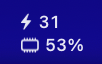
In the menu bar it is just a number or two, small enough to sit next to the notch, on one line or two readings on top of each other. Show the Mac, the charger, the battery, memory, swap and CPU frequency, as icons with values, values only, or not at all.
Version 1.7
— downloads— visitorscounted once the page is on stigern.net
macOS
macOS 13 Ventura or later, Apple silicon. Signed and notarized by Apple.Wattbar-1.7.zip2.0 MBSHA-256 checksum
3f38b36b588a6db3466de34c3546810db40af899f997b44b6e6f0e386a68927c Wattbar-1.7.zipUnzip, drag Wattbar to Applications and open it. It shows up in the menu bar, not in the Dock. To get to Settings, click Wattbar and choose Settings…, or open Wattbar again from Spotlight. If Wattbar doesn't appear next to the notch, macOS has hidden it for lack of room: choose the stacked or compressed layout, or fewer readings, in Settings.
Free. What changed is in the changelog below. If you like it, you can buy me a coffee.
☕ Buy me a coffeeWhere the power goes, as it happens.
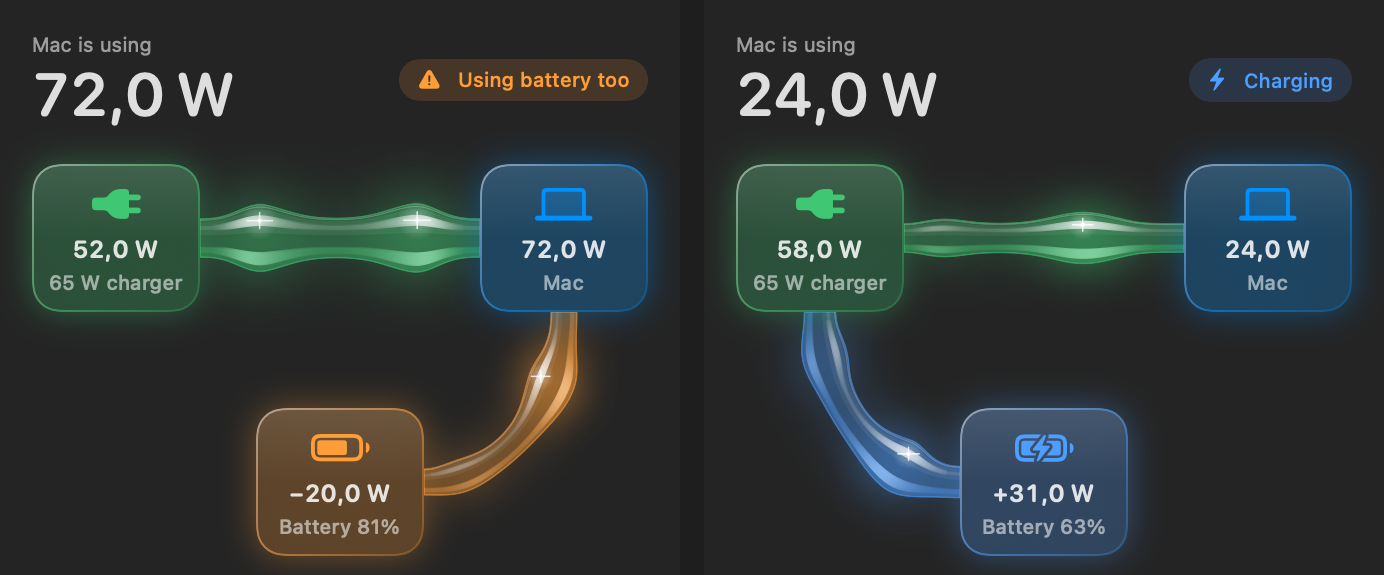
Click Wattbar and the panel shows the charger, the battery and the Mac, with glass tubes between them. The tubes glow and swell with the watts that run through them, so you can see at a glance whether the battery is charging, helping out, or resting.
What the Mac uses
The whole computer: processor, graphics, screen, everything plugged in. Read from the Mac's own power sensors, the same numbers macOS uses itself.
What the charger delivers
With the charger's rating, voltage and current, for example 96 W charger · 20 V · 4.7 A. Handy when one charger seems slower than another.
What goes in or out
Plus for charging, minus for draining, and the card fills up like a glass to the battery's level. With time left or time to full, the battery's health and how many cycles it has been through.
What happened the last half hour, and who did it.
Under the flow is a graph of the last 30 minutes with the peak and the average; hold the pointer over it to read any moment. Below it are the apps using the most power, each with a bar for its share, and one click opens Activity Monitor.
Switch from Power to Memory and the same graph and list show memory: how much is in use, memory pressure, swap, and the apps holding the most.
Optional in Settings → General, all off by default: how fast each group of CPU cores runs, CPU, GPU and battery temperatures in °C or °F, and each fan’s speed. A stopped fan shows Off, and a sensor your Mac doesn’t have stays unavailable.

As much or as little as you want up there.
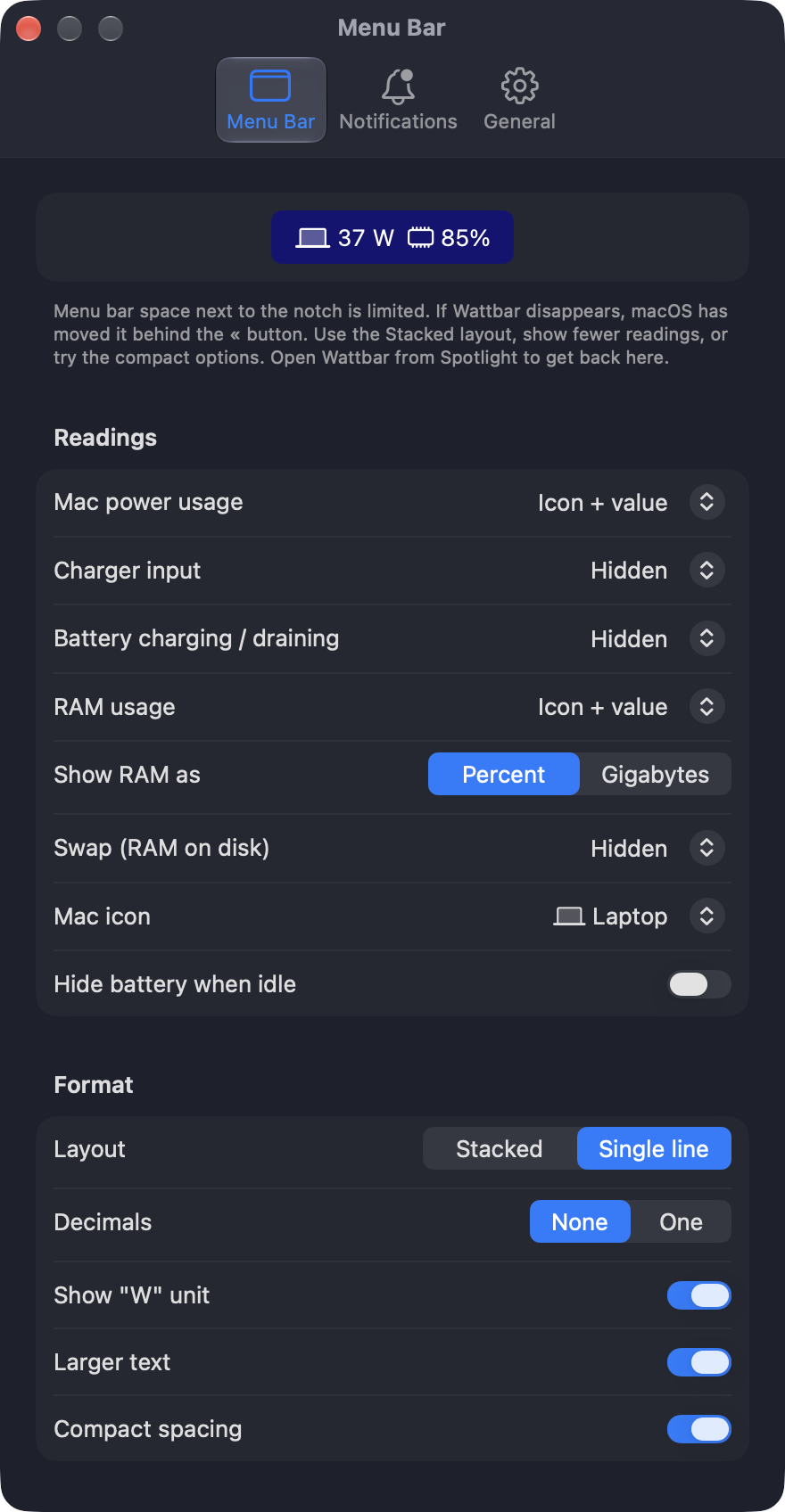
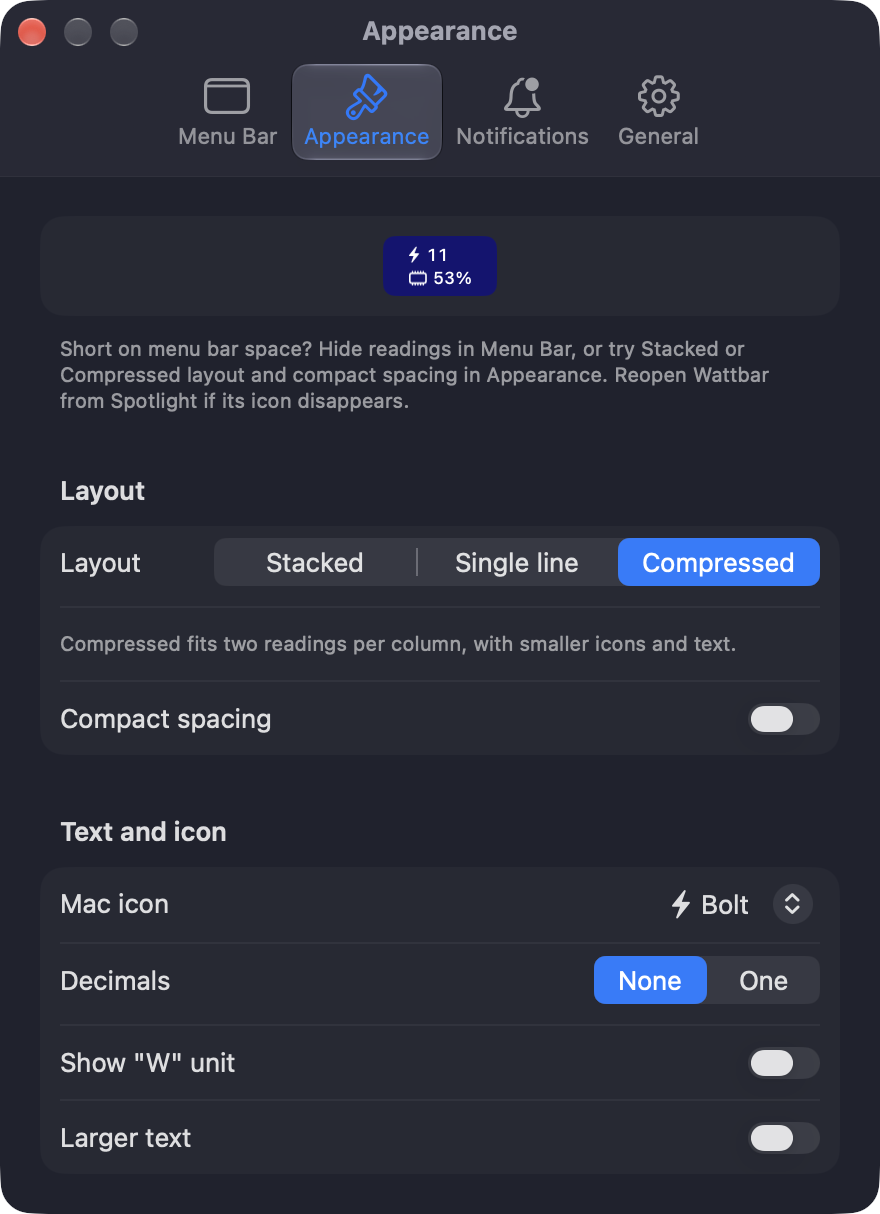
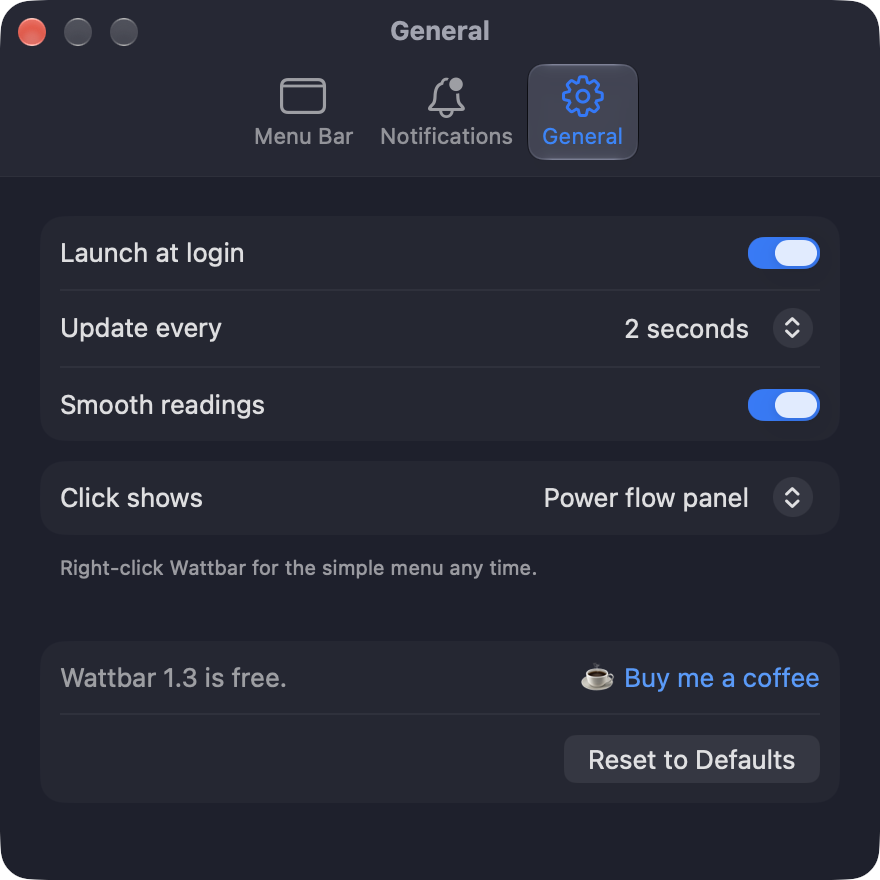
Everything is set in Settings, in four tabs: Menu Bar, Appearance, Notifications and General.
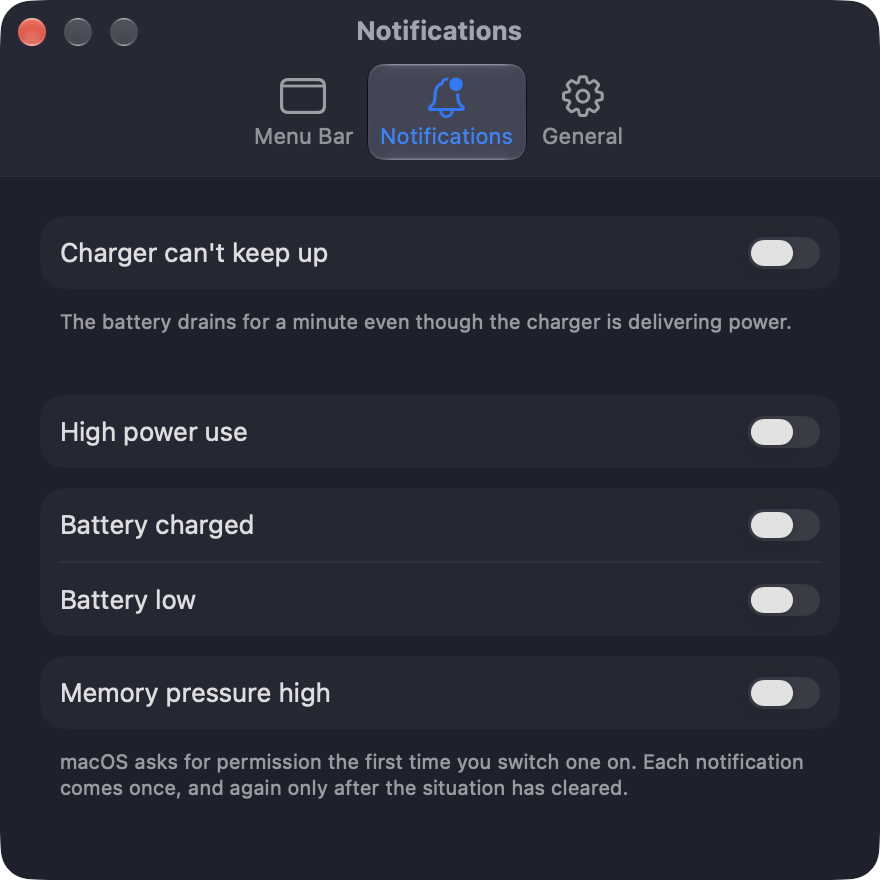
A heads-up when something is off.
All off by default. Switch on the ones you want and set your own limits. Each one comes once, and only again after the situation has cleared, so they don't nag.
- Charger can't keep up. The battery drains for a minute even though the charger is delivering power. Usually a weak charger or cable.
- High power use. The Mac has used more than a number of watts you choose, for as many minutes as you choose.
- Battery charged. The battery has reached your percentage, so you can unplug.
- Battery low. The battery is down to your percentage on battery power.
- Memory pressure high. macOS says memory is running short, before things slow down.
A power meter shouldn't use power.
Measured with version 1.5 on a MacBook Pro with M5 Pro, updating every 2 seconds, with CPU frequencies shown in the panel: the processor use is the average over two minutes with the panel closed, and the middle of three 20-second measurements with it open, from the CPU time macOS counts for Wattbar. The animation stops as soon as the panel closes or is covered, and with Reduce motion on.
Apple silicon only. Wattbar reads the power sensors of M1 and later Macs. Intel Macs aren't supported.
CPU frequency comes from interfaces Apple doesn't document. They can change with a macOS update. If a Mac doesn't report them, Wattbar says Unavailable rather than guessing.
A desktop Mac has no battery or charger readings. On a Mac mini, iMac, Mac Studio or Mac Pro, Wattbar shows what the Mac uses, and memory.
The app list is an estimate. It comes from the energy macOS counts for each app, which leaves out things like the screen. It tells you who uses the most, not exactly how many watts each one uses.
No account or analytics. Wattbar contacts stigern.net only when you click Check for updates… in Settings → General. Monitoring stays on your Mac.
Made with Claude and Codex. Wattbar was written together with Anthropic's Claude and OpenAI's Codex, and Codex also went through the code hunting for bugs. I tested it on my own Mac.
What changed in each version.
Version 1.7
2026-10-28
New
- Choose the temperature unit in Settings → General: Same as macOS (the default), Celsius or Fahrenheit.
Fixed
- The reading in the menu bar stays put when you open or close the power panel, instead of nudging the icons next to it.
- Apps with “.app” inside their name keep their full name in the app list.
- Temperatures and fans show Measuring… until the first reading arrives, instead of briefly showing Unavailable.
Improved
- Stopped fans show as Off, and fan speeds line up under the temperature columns.
- The per-app energy scan looks only at your own processes, which cuts its CPU time to about a third.
Version 1.6
2026-10-26
New
- Optional CPU, GPU and battery temperatures, and each fan’s actual speed. Switch them on independently in Settings → General; both are off by default.
- A compact sensor section: temperatures together on one row, fans on another, with the explanation in a tooltip.
- Check for updates… in Settings → General. Checks happen only when clicked; newer versions open the official download page.
Fixed
- The power panel keeps its expanded size as live readings arrive and remembers it when reopened. Smaller screens still scroll.
- The right-click menu lists CPU groups on separate lines instead of one long sentence, and keeps its rows steady while values update.
- Opening the power panel or Settings cancels a pending right-click menu, so it cannot appear over the new view.
Improved
- Gentler moving water in the power-flow tubes and battery indicator. Animation pauses when hidden and respects Reduce Motion.
- Sensor reads run away from the interface and stop when their optional readings are not in use. Missing values stay unavailable instead of showing invented zeroes.
Version 1.5
2026-10-22
New
- The battery card fills up with liquid to the battery's level: blue while charging, orange while it helps the charger, clear glass while resting.
- CPU frequency: a glass bar per group of cores, in its own colour, showing how close the group runs to its top speed.
- The app list shows each app's share with a bar.
Fixed
- Time while the Mac sleeps now counts: busy minutes before the lid was closed no longer count toward a High power use notification after waking, and no longer show in the graph as if they had just happened.
- A notification that couldn't be shown is tried again after 30 seconds instead of on the next reading, and one held back because notifications were switched off comes once they are allowed again.
- Swapping one charger for another quickly shows the new charger's rating at once.
- A momentary hiccup from the power sensors no longer hides a reading until Wattbar is restarted.
- The stacked layout no longer cuts off the bottom of the CPU icon, or of the bolt with larger text.
- The simple menu shows the CPU frequency right away instead of Measuring….
- Right-clicking while the panel is open no longer hands focus to another app.
- With Reduce motion on, the flows are in the right place from the moment the panel opens.
- The Settings preview stays inside the window when many readings are shown.
- VoiceOver reads each card, the graph and the memory bar as one item each.
- A rare crash when macOS couldn't report the power sources.
Improved
- About a third less processor use with the panel open: the cards' glow is animated by Core Animation instead of redrawing the panel on every frame. Settings no longer redraws itself on every reading.
Older versions
1.0 to 1.4
Version 1.4
2026-10-16
New
- CPU frequency, in GHz for each group of processor cores (efficiency, performance and super), in the menu bar and in the panel and simple menu. Off by default, and no administrator access needed.
- A compressed menu bar layout: two readings on top of each other in the width of one, with smaller text and icons.
- Settings in four tabs: Menu Bar, Appearance, Notifications and General. Settings closes when you click elsewhere, and fits its contents without scrolling when there is room.
Fixed
- Battery health and cycles on Macs that report the battery data differently, such as the base M5. The simple menu shows them too, and says unavailable when the Mac doesn't report them.
- The panel scrolls instead of running off a small screen.
- Settings grows when more options appear, for example when a notification is switched on.
- The app list follows a program that starts another program in its place, instead of keeping the old name.
- Switching on Battery charged when the battery is already at the limit no longer sends the notification at once.
- Right after unplugging, the panel no longer shows the old "Full in …" time for a few seconds.
- The first CPU values in the menu bar are no longer squeezed to tiny text while the panel is open.
- An error from Launch at login no longer closes Settings.
Improved
- CPU frequency is read away from the interface, so the panel stays smooth, and nothing is read while no frequency is shown.
Version 1.3
2026-10-13
New
- A graph of the last 30 minutes in the panel, with peak and average. Hold the pointer over it to read the value at that moment.
- The apps using the most power right now, with a button for Activity Monitor.
- A Power / Memory switch in the panel: the graph and the app list show memory use, and the apps holding the most memory, instead.
- Battery details: time left or time to full, battery health and cycle count.
- Charger details: rating, voltage and current.
- Notifications, all off by default and with your own limits: charger can't keep up, high power use, battery charged, battery low, memory pressure high.
- Settings in three tabs: Menu bar, Notifications and General.
- A new app icon.
Fixed
- On a Mac without a battery, Wattbar no longer says it runs on battery, and a reading that is missing shows as missing instead of 0 W.
- One failed reading at start no longer leaves Wattbar on its slower backup source for good.
- Smoothing no longer mixes the numbers from before and after the charger is plugged in or out. Peaks, averages and notifications use the real readings, not the smoothed ones, and averages count time, not samples.
- The memory percentage no longer gets stuck, and memory keeps working when the power readings don't.
- A notification that couldn't be shown (notifications not allowed yet) comes once they are, instead of being lost. The "for N minutes" timers start over after a gap in the readings or a changed limit.
- The app list no longer gives one app's numbers to another that got the same process number.
- Reset to Defaults also resets the Power / Memory choice.
Improved
- Less processor use while the panel is closed. The Settings window no longer keeps running after it is closed.
- The animation stops when the panel is covered, and with Reduce motion on.
Version 1.2
2026-10-13
New
- Memory in the menu bar, in percent or gigabytes, and in the panel with memory pressure.
- Swap (memory moved to disk) as a reading of its own.
Fixed
- The panel no longer jumps around when it opens.
- Several smaller fixes, and less processor use.
Version 1.1
2026-10-10
New
- The power flow panel: the charger, the battery and the Mac, with animated glass tubes showing where the power goes.
- A setting to keep the simple text menu instead of the panel, and the simple menu on right-click.
Version 1.0
2026-10-10
First version
- What the Mac uses, what the charger delivers and what goes in or out of the battery, in watts in the menu bar.
- Each reading as icon and value, value only, or hidden; a stacked layout that fits next to the notch.
- Launch at login, update interval and smoothing.