
A few days ago I wrote about Wattbar, the little power meter I made for my Mac’s menu bar. Version 1.3 is out now, and it’s the biggest update so far. Wattbar also has a page of its own: stigern.net/software/wattbar.
What happened, and who did it
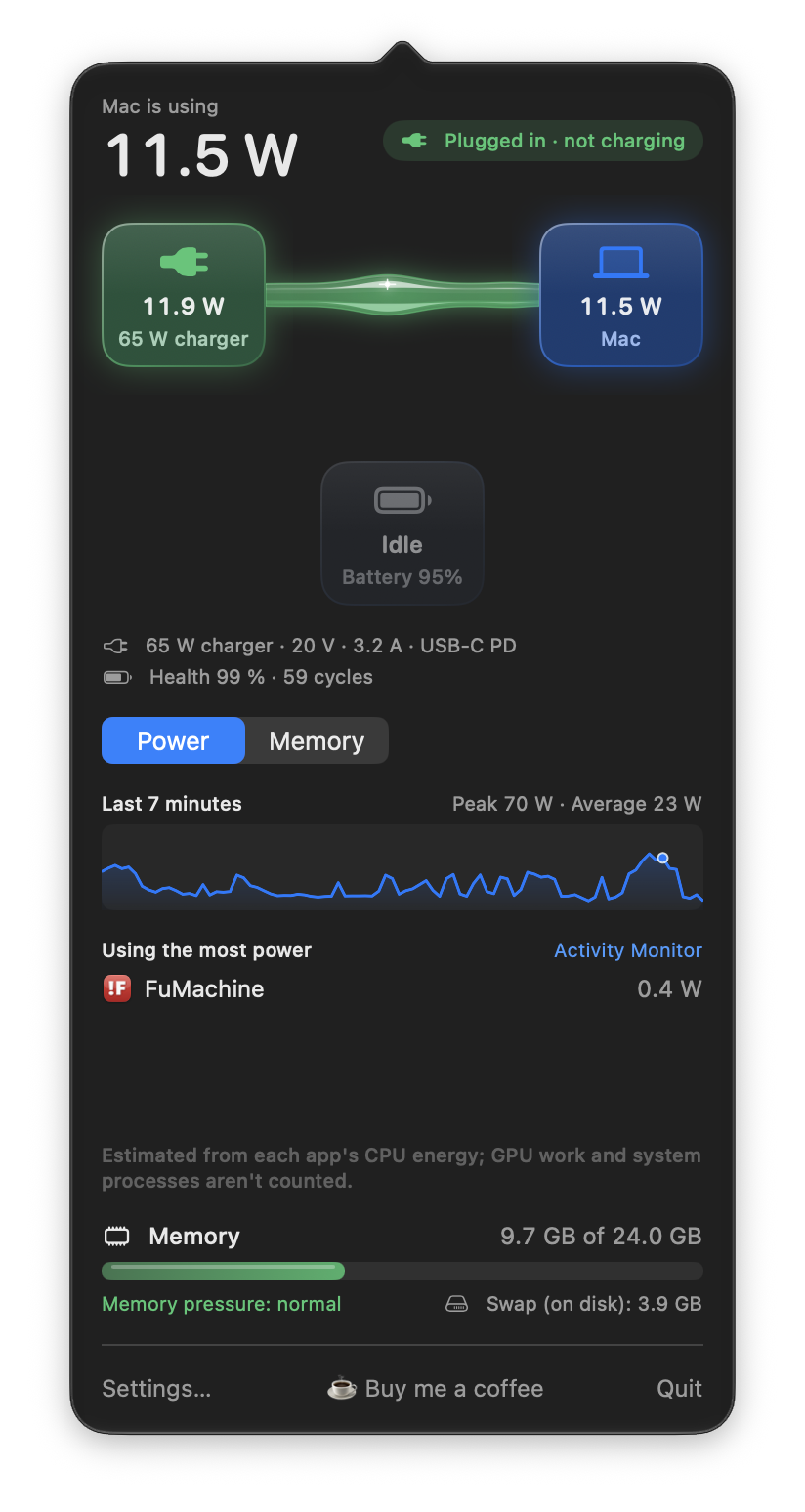
Under the power flow there is now a graph of the last 30 minutes, with the peak and the average. Hold the pointer over it to read what the Mac was using at that moment. That’s what I missed the most: seeing that something pulled 70 W a few minutes ago, and finding out when.
Below the graph are the apps using the most power right now, estimated from the energy macOS counts for each app. When the number is high, that’s usually the answer to why. One click opens Activity Monitor for the rest.
Memory the same way
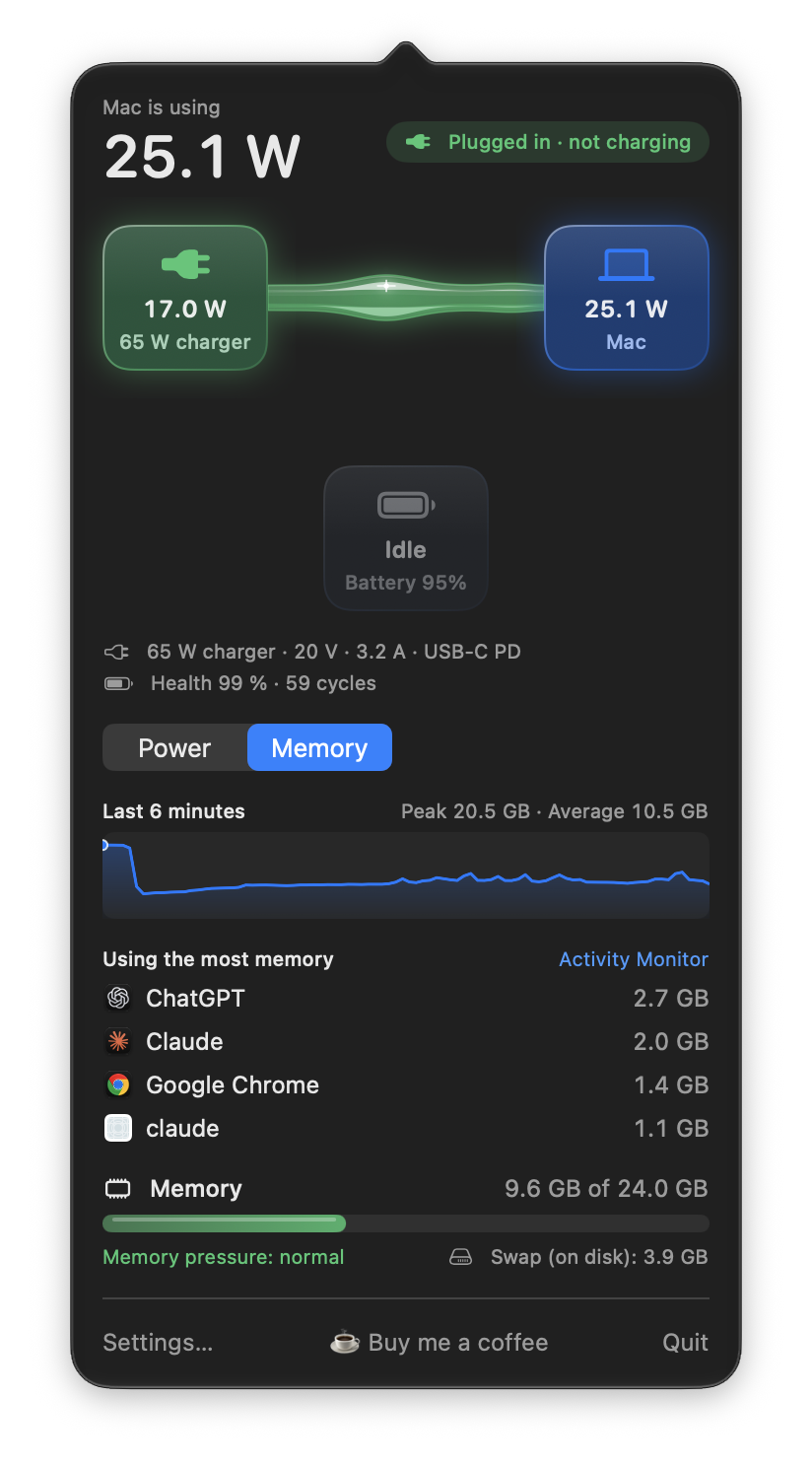
A switch at the top of the graph flips the panel from Power to Memory. Then the graph shows memory use over the last half hour, and the list shows the apps holding the most memory.
The battery and the charger
The panel now shows the charger’s rating, voltage and current, like 65 W charger · 20 V · 3.2 A, which is handy when one charger seems slower than another. For the battery it shows the time left or the time to full, its health, and how many cycles it has been through.
Notifications
Wattbar can now tell you when something is off. They are all off by default, and you set the limits yourself:
- Charger can’t keep up: the battery drains even though the charger is plugged in. Usually a weak charger or cable.
- High power use: the Mac has used more than a number of watts for as many minutes as you choose.
- Battery charged to your percentage, so you can unplug.
- Battery low, at your percentage.
- Memory pressure high, before things slow down.
Each one comes once, and only again after the situation has cleared, so they don’t nag.
Settings in tabs, and a new icon
Settings now has three tabs: Menu bar, Notifications and General. And Wattbar finally has a proper Mac icon, a bolt of glass.
Lots of bug hunting
Between the new features I have spent time hunting bugs, and fixed a good number of them. A Mac without a battery is no longer said to be running on battery, peaks and notifications use the real readings instead of the smoothed ones, and memory keeps working even when the power readings don’t. The page has the full list.
I also measured what Wattbar itself costs, honestly: about 0.3 % of one processor core with the panel closed, and about 15 % while the panel is open and animating. The animation stops as soon as the panel closes.
Get it
Version 1.3 is free, for Apple silicon Macs with macOS 13 or later, and signed and notarized by Apple. The download, the changelog and everything else about Wattbar is on its new page. Get it here!