
Wattbar 1.7 is out. You can now choose whether temperatures show in Celsius or Fahrenheit, and a handful of small things that bugged me are fixed, the most visible being that the reading in the menu bar no longer nudges its neighbours when you open the panel.
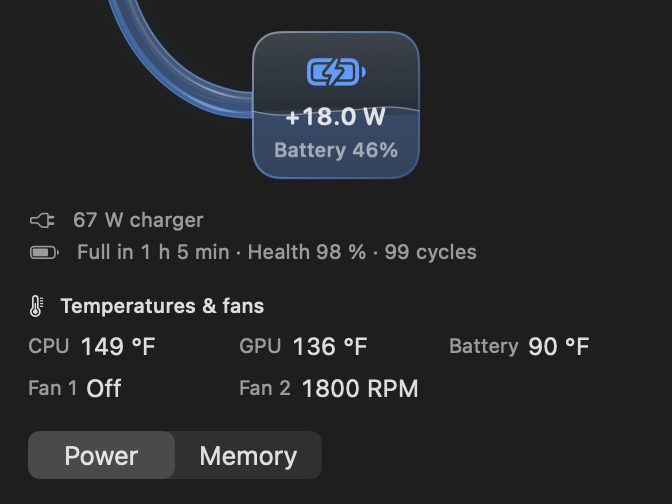
Celsius or Fahrenheit
With Show temperatures on in Settings → General, there is now a choice of unit just below it. Same as macOS is the default and follows the temperature setting in Language & Region, so most people won’t need to touch it. Pick Celsius or Fahrenheit if you want Wattbar to differ from the rest of your Mac.
Fixes
- The reading in the menu bar stays put when you open or close the panel. Before, it grew a little while the panel was open and pushed the icons next to it sideways.
- A fan that has stopped now says Off instead of 0 RPM, and the fan speeds line up under the temperatures.
- Temperatures and fans say Measuring… until the first reading arrives, instead of flashing Unavailable for a moment.
- Apps with “.app” inside their name keep their whole name in the app list.
- The per-app energy scan only looks at your own processes, which cuts the CPU time it takes to about a third.
The full list is in the changelog on the page.
Get it
Version 1.7 is free, for Apple silicon Macs with macOS 13 or later, signed and notarized by Apple. If you have 1.6, Check for updates… in Settings → General will take you to it. Get it here!