
I wanted a small power meter in my Mac’s menu bar: something that shows what my Mac is using right now, and nothing else.
So I made one: Wattbar.
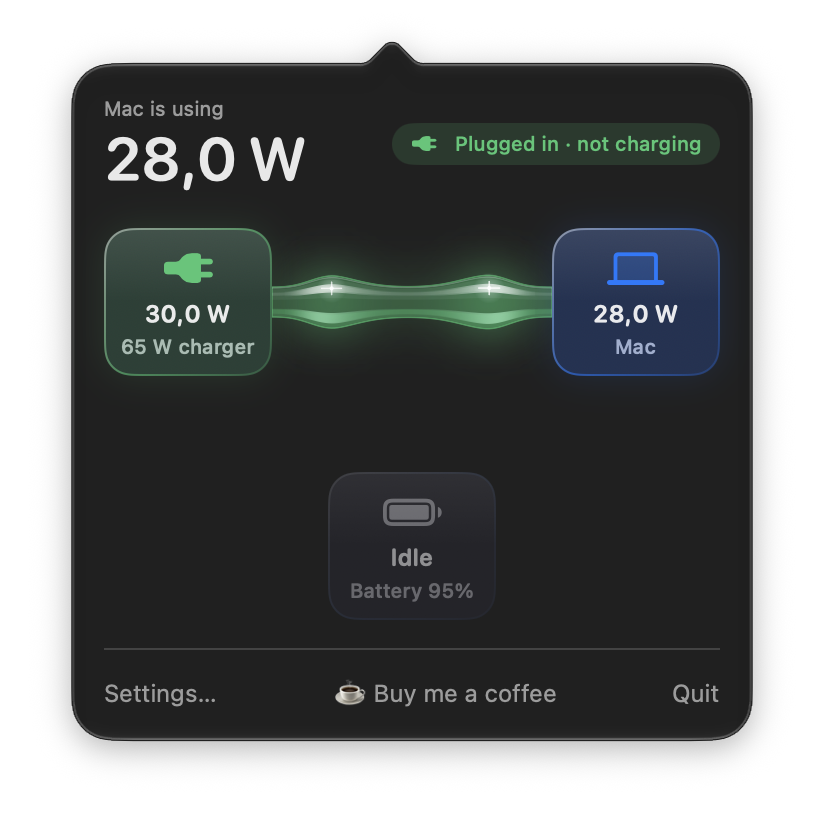
Wattbar sits in the menu bar and shows, live, how much power the Mac is using, how much is coming in from the charger, and how much is going into or out of the battery. Click it and a panel shows where the power goes.

See where the power goes
Click Wattbar and a small panel shows how the power flows: from the charger into the Mac, and into or out of the battery. Each flow is a glass rod as thick as the watts going through it, with slow swells travelling along it in the direction the power moves.
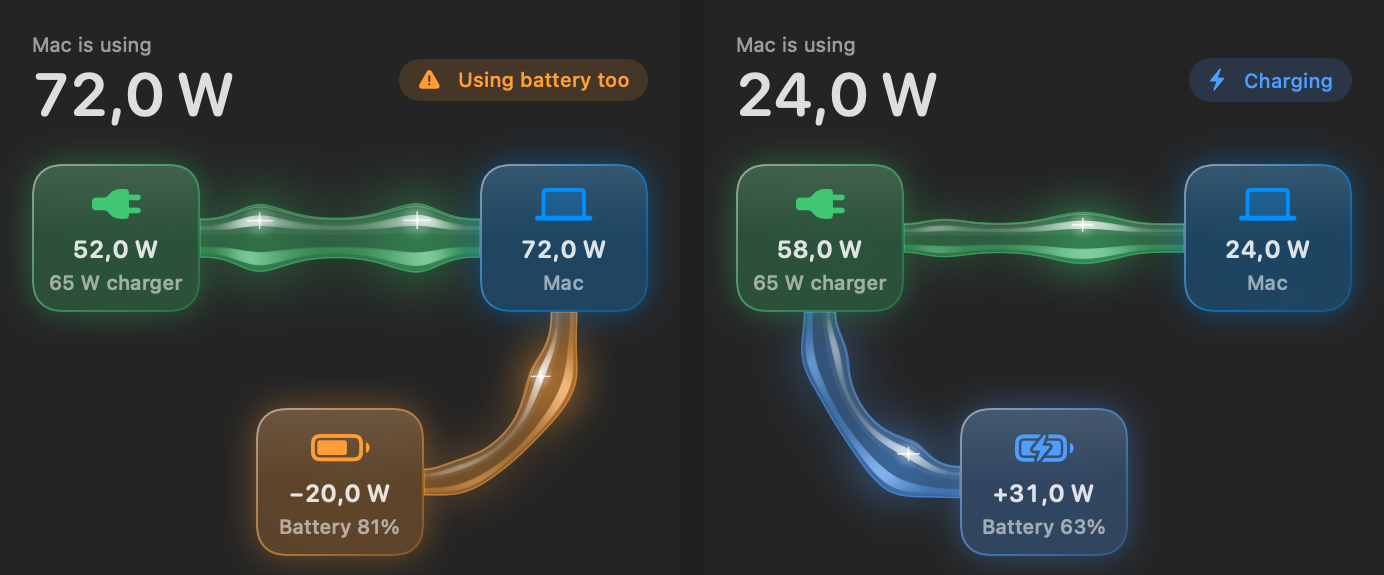
When power comes from two places, or goes two ways, you see both: the battery helping a charger that can’t keep up, or the charger running the Mac and charging the battery at the same time.
Prefer plain text? Set Click shows to Simple menu in Settings, or right-click Wattbar any time.
Made for the notch
On a MacBook with a notch, the right side of the menu bar fills up fast, and macOS quietly hides whatever doesn’t fit behind a « button. The first version of Wattbar kept disappearing that way. So by default it stacks each reading as a small column, the number above an icon, which fits three readings in about the space of one.
Settings
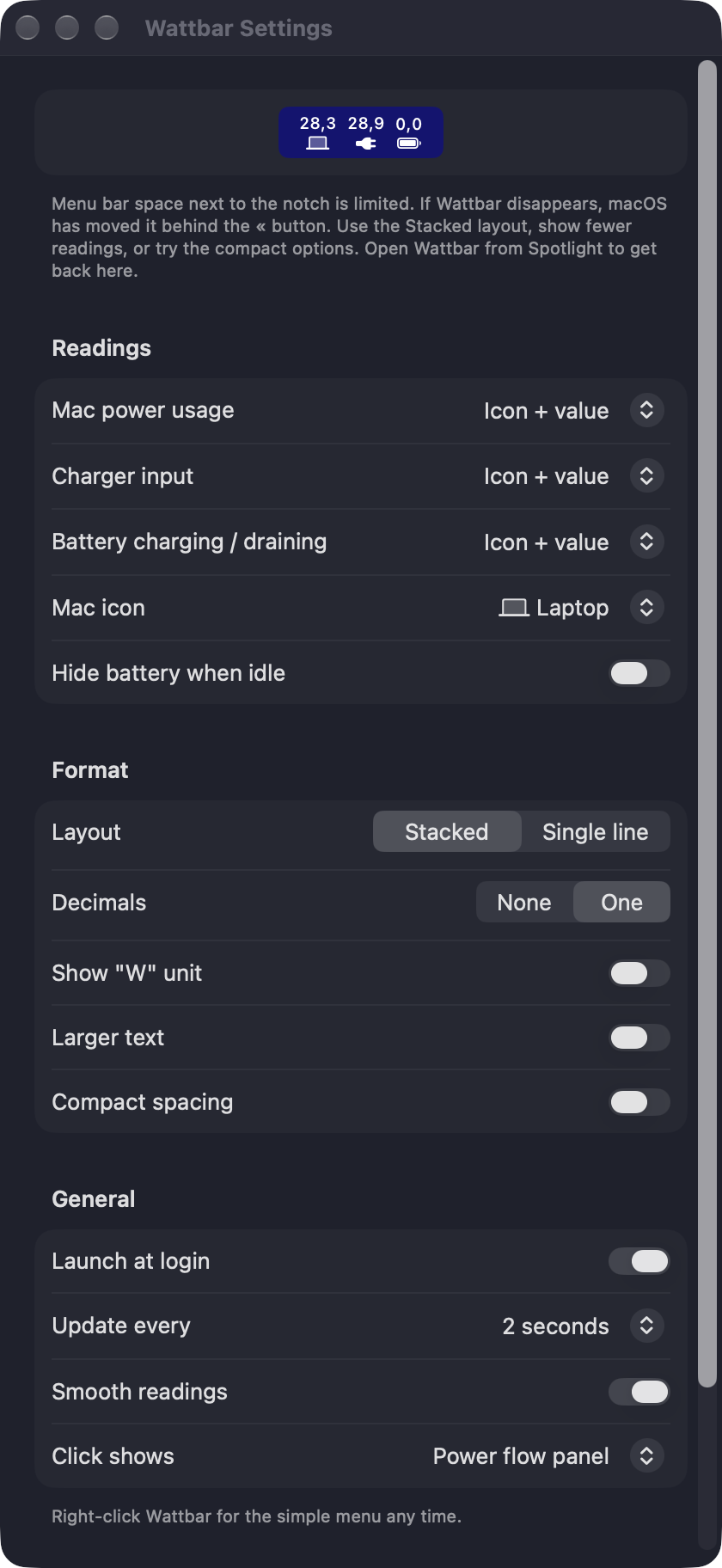
- Choose per reading: icon and value, value only, icon only or hidden
- Stacked or single line layout
- Pick the Mac icon: laptop, bolt, gauge, chip or plug
- Decimals, the “W” unit, larger text and compact spacing
- Hide the battery reading when it’s idle
- Update every 1, 2 or 5 seconds, with optional smoothing
- Launch at login
- Click shows: the power flow panel or a simple menu
Settings… is at the bottom of the panel and in the menu (⌘,). If macOS has hidden the menu bar item anyway, open Wattbar from Spotlight and the Settings window comes up.
How it measures
Wattbar reads the Mac’s System Management Controller directly, so it updates every second or two. The battery number is the battery’s own measured power, so when charging is paused, for example by a charge limit, Wattbar really shows 0.
macOS also keeps battery statistics of its own, but they only refresh every 30 to 60 seconds, which is too slow for a live meter. Wattbar only falls back to them if the live readings aren’t available.
Getting started
Unzip it and drag Wattbar to Applications. It’s signed and notarized by Apple, so it opens without warnings. The first time it runs it turns on Launch at login, and you can switch that off in Settings.
- macOS 13 Ventura or later
- Apple silicon (M1 and newer)
- About 1 MB, no dependencies, nothing in the Dock
A note
Like FuMachine, Wattbar was written with Claude. I made it for my own MacBook and it does what I wanted, and that’s the reason it’s here. No warranty and no support promise, but if it’s useful to you too, good.
Download
Download Wattbar 1.1 (zip, 0.7 MB)
SHA-256 22561b17ce80a19a086c863f22512f05841cc98b93b1639a94f84067141bac0f
New in 1.1: the animated power flow panel, and a choice between it and the simple menu.
Wattbar is free. If it’s useful to you, you can buy me a coffee ☕